
Introduction
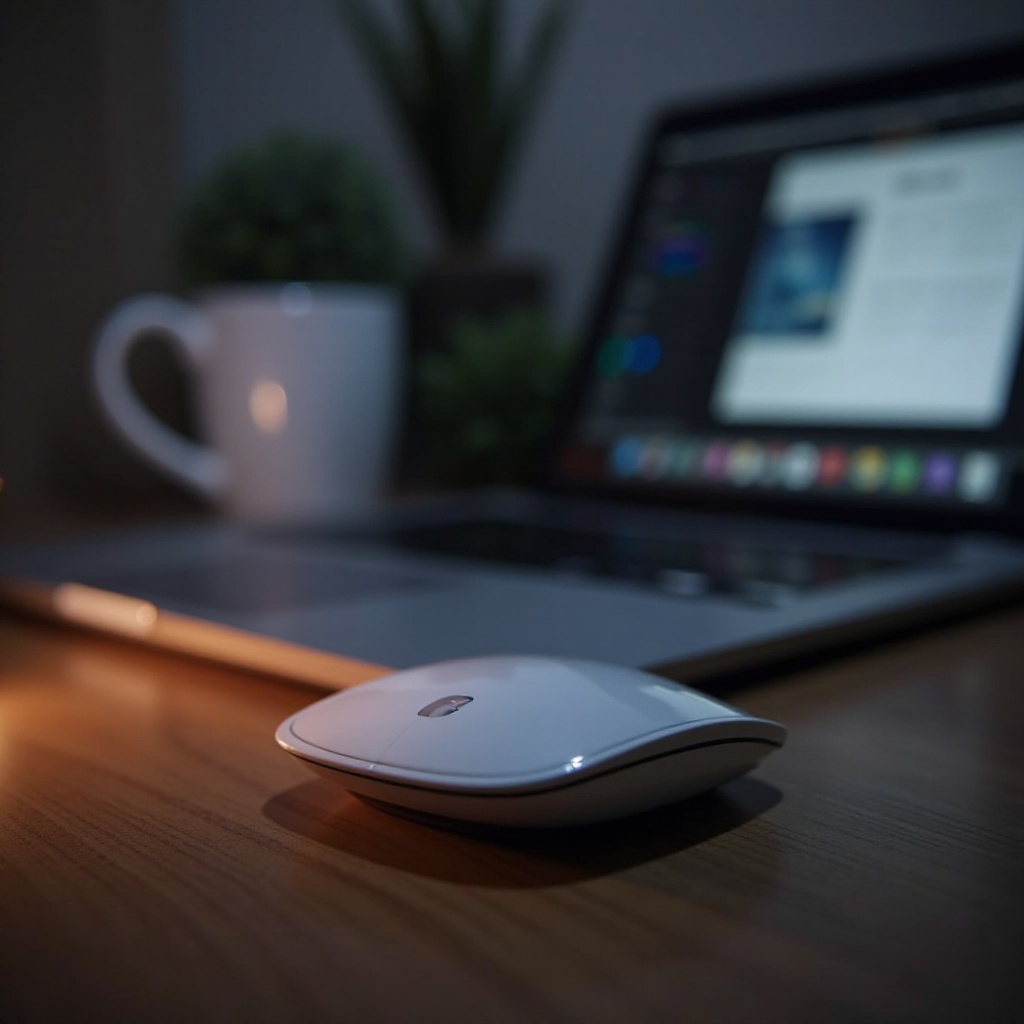
The Magic Mouse by Apple stands out for its sleek design and advanced multi-touch capabilities. Optimizing its configuration can significantly improve your workflow and overall user experience. This guide provides a comprehensive look at how to set up and customize your Magic Mouse to meet your specific needs effectively.

Getting Started with the Magic Mouse
Before personalizing your Magic Mouse, ensure it’s properly connected to your Mac. First, switch on your Magic Mouse using the power button located underneath. Next, open the Bluetooth preferences on your Mac via the menu bar or System Preferences. Your Magic Mouse should appear in the list of available devices; select it and click ‘Connect.
Once connected, you can dive into System Preferences and select ‘Mouse’ to access various configuration options. Understanding these basic connections ensures a smooth transition into more personalized adjustments.
Customizing Basic Settings
With your Magic Mouse now connected, it’s time to customize its basic settings for optimal use. Effective configuration of these settings provides a seamless interaction between you and your Mac.
-
Adjust Tracking and Scroll Speed: Find the sliders for tracking and scroll speed in the Mouse Preferences. Adjust them to match your comfort level, promoting ease of use.
-
Configure Click Preferences: Choose your primary click—left or right—especially if you’re left-handed, to tailor the Magic Mouse to your requirements.
-
Set Up Secondary Click: Enable ‘Secondary Click’ to facilitate right-click functionalities, expanding the mouse’s versatility.
Configuring these foundational settings allows you to harness the full potential of your Magic Mouse, laying the groundwork for exploring more advanced features.

Unlocking Advanced Gestures
The true efficiency of the Magic Mouse lies in its ability to execute advanced multi-touch gestures. These functionalities can transform how you interact with your applications, enhancing productivity.
-
Understanding Multi-Touch Gestures: Swipe two fingers left or right to switch between full-screen apps, and double-tap with two fingers to open Mission Control.
-
Customizing Gestures for Applications: Use third-party apps like BetterTouchTool for bespoke gestures tied to specific applications, thus optimizing your workflow. These customizations empower you to navigate your tasks effortlessly and intuitively.
Mastering these gestures helps you utilize the Magic Mouse’s full range of capabilities, making routine tasks faster and more efficient.
Troubleshooting Common Issues
While the Magic Mouse is an excellent tool, it’s possible to encounter occasional issues. Timely troubleshooting is essential to maintaining consistent performance.
-
Connection and Pairing Problems: Ensure the mouse’s batteries are charged, and reduce interference from other electronics if your Magic Mouse disconnects frequently.
-
Resolving Sensitivity and Tracking Errors: Consider resetting your Mac’s PRAM/NVRAM or adjusting tracking sensitivities if your cursor movement feels off.
Addressing these issues promptly will keep your Magic Mouse operating at peak performance, ensuring that it remains an asset rather than an obstacle in your workflow.
Tips and Tricks for Optimal Use
To make the most of your Magic Mouse, apply these practical tips and tricks for better performance and longevity.
-
Battery Management and Optimization: Employ rechargeable batteries to minimize waste and carry spares to avoid downtime. Remember to turn off the mouse when not in use to save battery life.
-
Maintenance and Cleaning Tips: Regular cleaning of the Magic Mouse to clear the sensor and surface of dust is critical. Use a microfiber cloth lightly moistened with water to prevent buildup that could impede its performance.
Incorporating these tips ensures your Magic Mouse remains a reliable tool and can significantly extend its lifespan.
Conclusion
Though configuring a Magic Mouse may seem minor, its impact on your productivity can be profound. Modifications and customizations allow for a tailored and efficient workflow. Continual experimentation with settings and gestures ensures the perfect setup for your needs, maximizing the Magic Mouse’s potential.
Frequently Asked Questions
How do I reset my Magic Mouse settings?
To reset Magic Mouse settings, go to System Preferences, select ‘Mouse,’ and adjust the settings to default or to your liking.
Why is my Magic Mouse not connecting to my Mac?
Ensure your Magic Mouse is powered on and within range. Check the battery and ensure Bluetooth is enabled on your Mac.
Can I use Magic Mouse with non-Apple devices?
While designed for Apple devices, the Magic Mouse can work with other Bluetooth-enabled devices, although with limited gesture functionality.