
Introduction
Using an iPad can enhance productivity and entertainment, but sometimes, website restrictions hinder its full potential. Whether you need to adjust web access for children or require fewer restrictions for personal use, knowing how to allow websites on an iPad is essential. This guide provides clear steps and alternative methods to ensure seamless and secure browsing.
Understanding iPad Restrictions and Parental Controls
iPad restrictions are designed to keep users safe from harmful and inappropriate content. For parents, these controls are crucial for protecting children’s online activities. However, there are instances when these settings limit access to necessary websites. Understanding these controls is the first step in customizing them to better suit your needs.
iPad’s primary tool for managing content restrictions is the Screen Time feature. Familiarizing yourself with Screen Time is crucial for effectively controlling the web access and overall usage of your iPad.
Step-by-Step Guide to Allow Websites on iPad
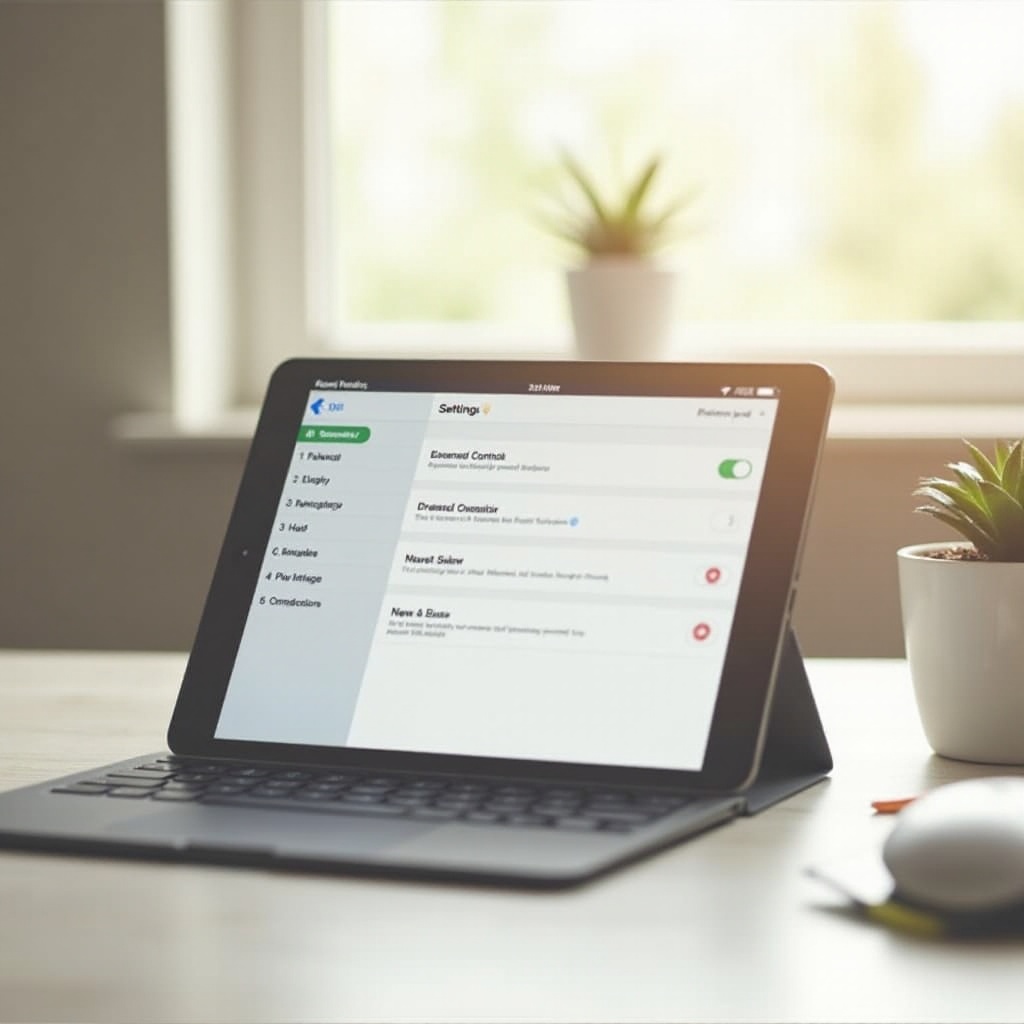
Follow these instructions to modify web access settings on your iPad:
-
Open the ‘Settings’ app and select ‘Screen Time’.
-
If Screen Time isn’t active, tap ‘Turn On Screen Time’ and follow the setup instructions.
-
Tap ‘Content & Privacy Restrictions’. Enable it by toggling the switch.
-
Go to ‘Content Restrictions’ and then ‘Web Content’.
-
You have three options: ‘Unrestricted Access’, ‘Limit Adult Websites’, and ‘Allowed Websites Only’.
-
For custom site access, select ‘Limit Adult Websites’. Under ‘Always Allow’ or ‘Never Allow’, tap ‘Add Website’ to include specific URLs.
These steps give you the flexibility to tailor your iPad’s web access to suit personal or familial needs, ensuring both safety and accessibility.
Alternative Methods for Managing Website Access
Apple’s built-in features might not cover all your needs. At times, having additional methods to manage website access is beneficial. Here are some options to consider:
-
Third-Party Parental Control Apps: Applications like Qustodio, Net Nanny, and Norton Family offer enhanced monitoring with customizable filters and detailed usage reports.
-
Router Settings Modifications: Adjusting your router’s settings allows you to manage content for all devices on your network. Most modern routers feature parental controls that enable or block specific domains, providing wider control and flexibility.
By combining Screen Time settings with these alternative methods, you can achieve a comprehensive approach to website access management, suited to diverse needs and preferences.
Troubleshooting Common Issues
Despite Apple’s user-friendly design, issues can arise when managing restrictions. Here are solutions for typical problems:
-
Grayed-Out Settings: This issue often indicates a parental control passcode is needed to make changes. Ensure you have the passcode to unlock and adjust these settings.
-
Persistent Access Problems: If changes don’t seem to work, consider restarting your iPad. A reboot can resolve many technical issues.
-
Ensuring iOS and Apps are Updated: Out-of-date software may cause compatibility errors. Keeping your system and apps updated helps maintain smooth functionality.
With these solutions at hand, you can address most common challenges, maintaining efficient and effective management of site restrictions on your iPad.
Conclusion
Allowing websites on an iPad involves more than just toggling a few settings. By understanding and using the built-in Screen Time feature, exploring third-party apps, and adjusting network settings, you can ensure a safe and personalized browsing experience. Take the time to periodically review and update these settings, so they always reflect your current requirements and offer the best balance between freedom and security.
Frequently Asked Questions
How do I unblock a website on my iPad?
To unblock a website, navigate to Screen Time settings, select ‘Content & Privacy Restrictions’, then ‘Content Restrictions’, and adjust the Web Content settings.
Can I set different restrictions for different users on an iPad?
Yes, with Apple’s Family Sharing and Screen Time features, you can set personalized restrictions for each family member’s account.
Is there a way to temporarily disable restrictions without losing settings?
Yes, you can disable Screen Time temporarily, which pauses restrictions without deleting them. Simply turn off Screen Time via Settings when needed.