
Introduction
Apple offers a robust messaging service called iMessage, which is highly popular among iOS users. Initially, many set up iMessage with an email address. However, using your phone number for iMessage is more intuitive for most users and can simplify the communication process. This guide will guide you through changing from an email address to your phone number, ensuring a hassle-free transition while addressing common issues that may arise.
Understanding the Basics of iMessage
iMessage operates primarily using your Apple ID, which is often linked to an email address. This email serves as the primary contact point, but iMessage can also use your phone number. This flexibility is beneficial because it allows you to communicate using the contact method most people find convenient.
Reasons to Switch from Email to Phone Number on iMessage
Switching your iMessage from an email to a phone number has several benefits.
- Simplicity: Most people exchange phone numbers rather than email addresses, making phone numbers a more straightforward option for direct communication.
- Instant Connectivity: Your phone number ensures messages are delivered directly, without the intermediary step of converting from email.
- Enhanced Security: Using a phone number can provide additional security through SMS verification protocols.
Understanding these advantages helps clarify why using a phone number can be more beneficial.
Preparing Your Device for the Change
Before switching, it’s important to make sure your device is ready for the process:
- Update Your iOS: Always use the latest iOS version for better compatibility and security features.
- Backup iMessages: Use iCloud to save important messages. This step ensures no loss of valuable data during the transition.
Having completed these preparatory steps, you can begin modifying your iMessage settings with confidence.
Step-by-Step Guide to Changing iMessage from Email to Phone Number
Switching your iMessage setting is straightforward if you follow these steps:
- Access iMessage Settings:
- Open the ‘Settings’ app on your iPhone.
-
Scroll down and tap ‘Messages’ and then ‘Send & Receive.
-
Disable Email for iMessage:
- In the ‘Send & Receive’ section, you will see both your Apple ID email and your phone number.
-
Uncheck the email address to disable it, keeping only your phone number active.
-
Add and Verify Your Phone Number:
- Ensure your phone number is listed.
- If your phone number is not displayed, click on ‘Add Another Email or Phone Number’ and enter your number.
-
Follow the on-screen verification instructions sent via SMS.
-
Confirm the Change:
- After the number is verified, set the phone number to ‘Start New Conversations From.
- Test this setting by sending a message to ensure it’s configured correctly.
Troubleshooting Common Issues
Switching from an email-based iMessage to a phone number might not always proceed without hitches. Here are some solutions to typical problems:
- Activation Errors: Ensure your network connection is stable and restart your device.
- Syncing Issues Across Devices: Confirm all devices are using the same Apple ID and that settings are consistently applied.
- Verification Problems: Retry sending the verification SMS. If issues persist, contacting your carrier can help.
These troubleshooting tips are designed to help maintain a seamless iMessage experience.
Benefits of Using a Phone Number for iMessage
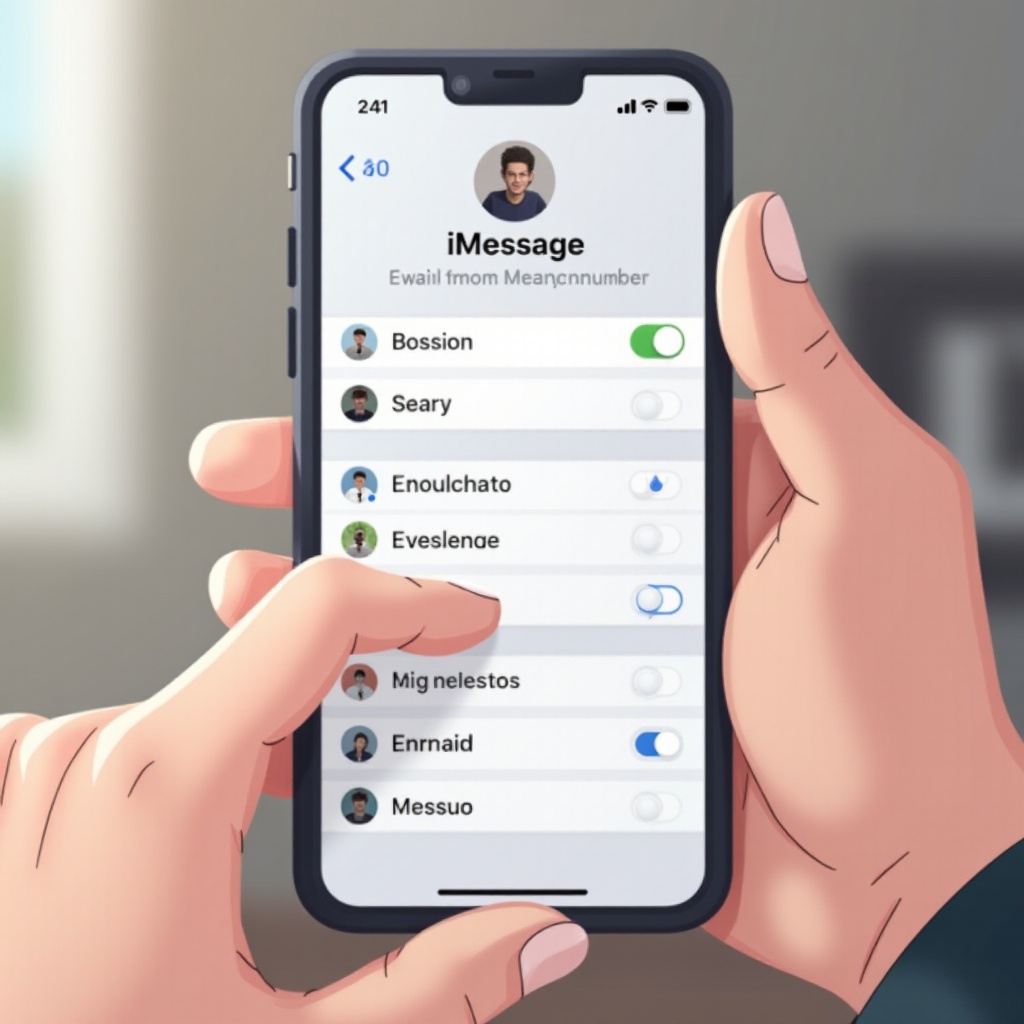
Switching to a phone number not only simplifies communication but also integrates all your messaging apps in one place. Having both your phone number and iMessage synced ensures that you don’t miss important messages, making your messaging experience smooth and efficient.
Conclusion
Changing iMessage from an email to your phone number is a wise move for those seeking ease and simplicity in communication. By following the steps outlined and addressing any potential technical hiccups, you can enhance your iMessaging experience effectively.
Frequently Asked Questions
What should I do if my phone number isn’t showing up in iMessage?
Ensure your number is correctly added in Settings under ‘Phone’ and check if ‘iMessage’ is enabled. Restarting your device may also help.
Will changing from email to phone number affect other Apple services?
The change only affects iMessages. Other services using your Apple ID, like iCloud, remain unchanged.
How can I ensure my messages are secure during this transition?
Keep your Apple ID details secure, use a strong password, and enable two-factor authentication for added security.